What fashion imagery must get right
Check the silhouette, fabric, and logo against the product, and make sure the pose and framing suit the purpose. Review product fidelity and usage rights before publishing generated images.


ONDO AI STUDIO brings virtual model shots, lookbooks, product imagery, technical flats, editing, and team sharing into one fashion workspace. Start with the product images you already have.
Virtual models · virtual fitting · AI lookbooks · technical flats · retouching · team library
Booking a model and arranging a shoot for every new product takes time and effort. Describe the model and style you want, add your product images, and create and refine different visuals without organizing another shoot.
Create a model, dress it with your product, and style the scene. Continue into technical flats and focused edits, checking that the silhouette and fabric still represent the real item.
Check the silhouette, fabric, and logo against the product, and make sure the pose and framing suit the purpose. Review product fidelity and usage rights before publishing generated images.
Combine models and garment images, choose poses and styles, and refine results with prompt enhancement and targeted edits. Keep completed assets in the team library.
Create model shots and lookbooks, convert product images to technical flats, and refine details. Use each tool on its own or connect them into a workflow, then keep the results as reusable team assets.
Creation tools
Describe the look, age range, and body type you need to create a virtual model. Generate full-body and portrait images for virtual fitting.
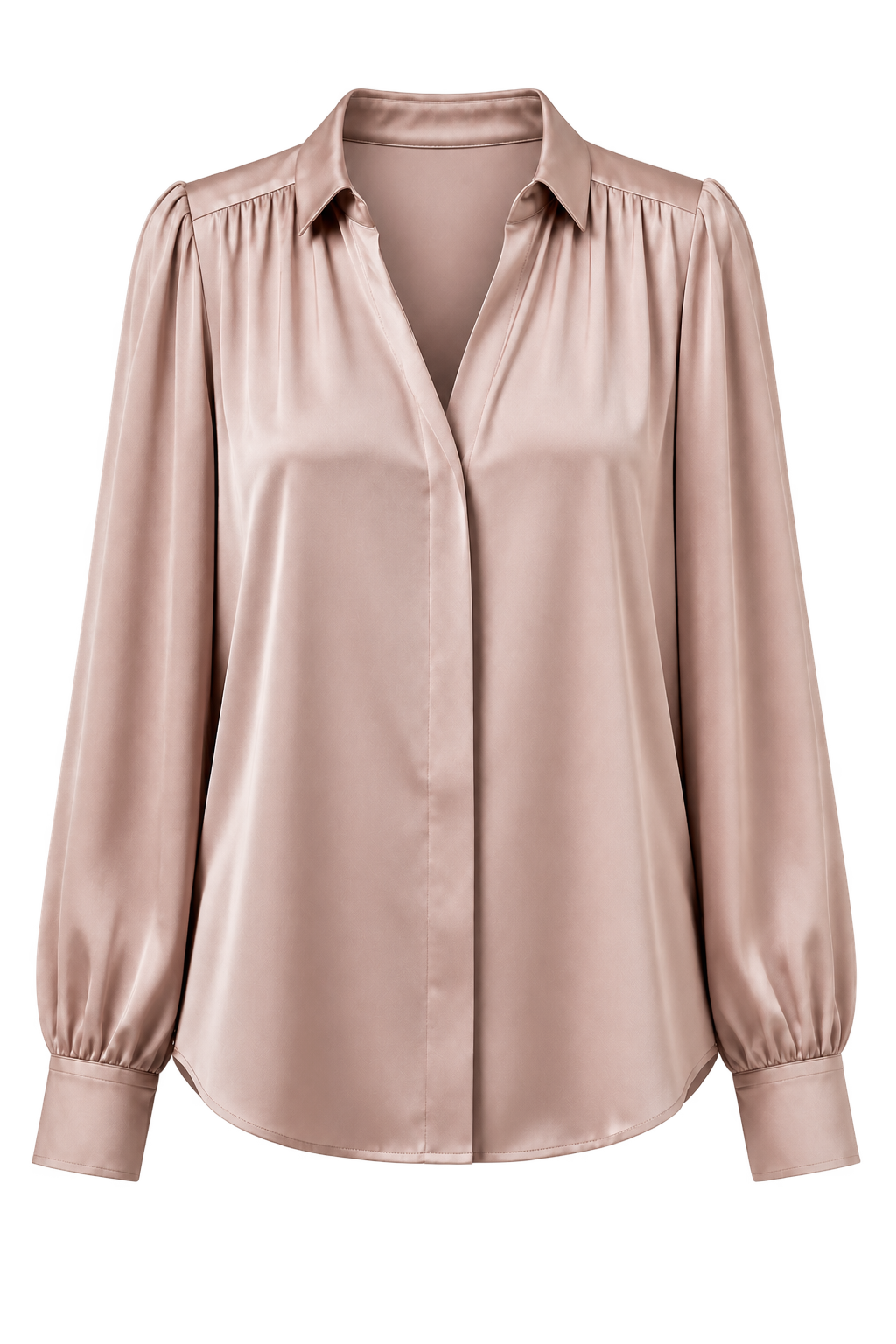
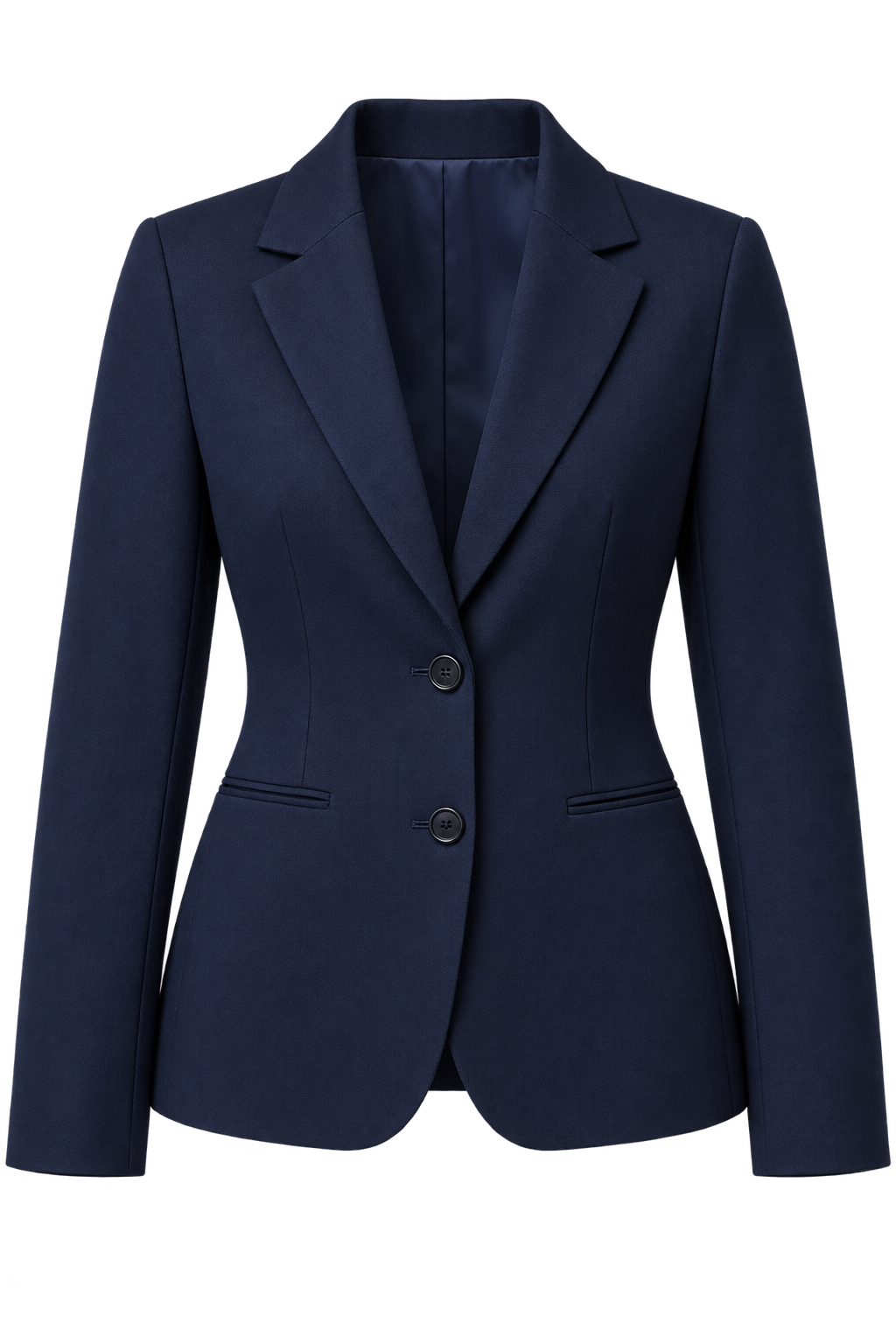
Combine outerwear, tops, and bottoms on an AI model. Try different poses and choose the styling that suits each product.
Pair prompts with shooting styles to create AI lookbooks and concept imagery, from editorial to streetwear.
Turn a product photo into a technical flat for production instructions, or a flat into a product image. Export to SVG as needed.
Organize model shots, lookbooks, and technical flats into folders. Share them with the team and save favorites for future work.
Brush over the area you want to change and describe the edit. Refine the part you need without regenerating the whole image.
Extract category, color, fit, and season from a product photo in seconds instead of tagging each field by hand.
Create a virtual model, dress it with your product, and style the scene you want.
Create product imagery and lookbooks in the same workflow.
⚑ Only bookmarked models appear here.
Export outlines, details, stitching, and trims as separate SVG layers.
Create a draft tech pack without manual measurements.
Export outlines, details, stitching, trims, and lace as separate SVG layers.
Mark an area and describe the change to regenerate just that part.
Compare the original and edited versions to refine the result.
Only the marked area is regenerated. The original remains in version history.
Drag an edge or corner to keep the area you want.
The crop is saved as a new version, leaving the original available to restore.
Drag an edge or corner to crop freely. Drag inside the selection to move it.
Manage model images, fitted looks, lookbooks, and technical drawings in one library.
Share folders with your team and save favorites for future work.
Images are kept for 90 days after creation. Favorites have no time limit. Share folders with your team.
Editing tools
Crop an image to the format that fits its channel and purpose.
Generate beyond the original frame to create a wider composition or a different aspect ratio.
Add color, fabric, or composition references to guide production. Attachment limits depend on the model in use.
Combine model creation, virtual fitting, styling, and technical flats in the order you need—or use just the tools your team needs.
Describe the look and mood to create a virtual model for fitting.
Add product images to the model and choose the outfit and pose.
Use prompts and style presets to create a lookbook or concept image.
Convert a product photo into a technical flat or export it as SVG.
Organize the results in a library and share them with the team.
Model creation, fitting, styling, and technical flats share one library. Images from one tool can become inputs for the next.
Use real product images to assess creation and editing results, then agree on how the team will share and retain assets.
Gather front and detail shots, along with the desired model and outfit conditions. Identify details such as fabric and logos that must be accurate.
Select a model for the images and output options you need. If an external API is involved, define what is sent and how it is retained.
Compare generated silhouettes, fabrics, and logos with the actual product, refine what needs work, and confirm usage rights.
Choose poses, styles, and aspect ratios for anything from product listings to brand lookbooks. Confirm resolution and file formats for the connected model.
Organize and share generated images. Set retention, deletion, and sharing policies for your operating environment.
Connect model creation, fitting, styling, and technical flats. Review and share the results so they can be used again.
Try the creation and editing tools on real product images. Define output options and data management rules alongside the workflow.
| Generation options | Output count, resolution, file format, and aspect ratio; supported combinations vary by model |
|---|---|
| Fitting poses | Front, walking, side, and back poses, with results reviewed before use |
| Shooting styles | Editorial, lookbook, street, product, ghost mannequin, and flat lay presets |
| Flat conversion | Product to flat, flat to product, and flat to SVG |
| Prompt handling | Turn input conditions into detailed shooting directions for the generation model |
| Retention policy | Agree on retention, favorites, deletion, and team access at adoption |
| Storage | Connect generation requests with resulting files in the library |
| Collaboration | Set sharing permissions by library folder |
Results vary with the product, inputs, and model. A team member should check product fidelity and usage rights before approving an image for sale.
Four creation tools and the library are now available in the work interface and used by the team. Next comes integration with other internal systems.
Designed the data model and storage for model, fitting, imagery, and technical flat tools.
Opened a workspace from prompt entry through result review, now used within the team.
Choose the model that fits the task and provide library sharing, inpainting, and other editing tools alongside it.
Connect model and flat assets with image similarity search, sales forecasting, and other internal systems.
Let's review the tagging and shooting work your team handles manually today.